TreeAMS Drive Introduction
This section covers:
📁 What is TreeAMS Drive in TreeAMS?
TreeAMS Drive is a centralized storage space that automatically collects all files uploaded through the File Upload Task or any upload feature in TreeAMS.
TreeAMS Drive allows you to:
- Store files securely
- Organize files into folders and group folders
- Quickly locate user-submitted documents
- Maintain a structured repository for operations and compliance
All uploaded documents, images, videos, or reports are stored in the folder selected during task assignment.
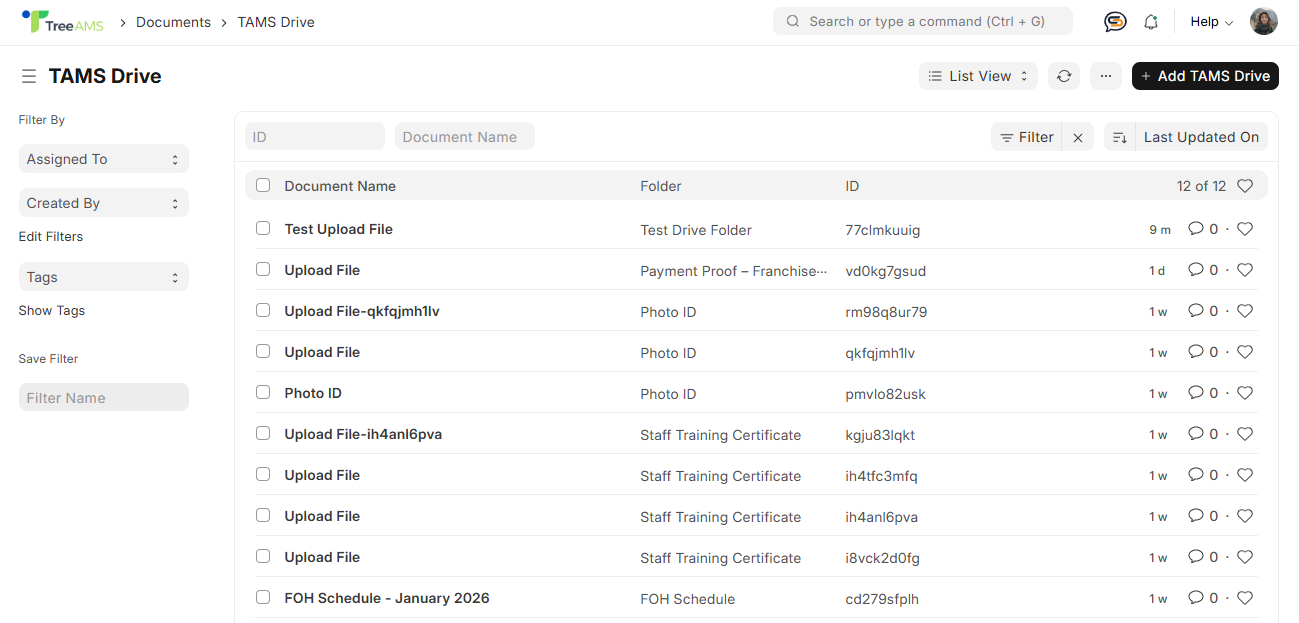
Each file entry includes:
- Document Name — The name of the uploaded file or the task title.
- Folder — The folder you selected when assigning the task.
- ID — A unique system-generated identifier for the file.
- Uploaded Date — How long ago the file was submitted.
- Actions — Options to preview, download, or favorite the file.
This means that instead of viewing files inside a “folder structure”, TreeAMS displays uploaded files in a sortable table, where the Folder column tells you which folder the file belongs to.
🔎 Quick Filter Shortcut
You can instantly filter files by folder by simply clicking the folder name in the list.
TreeAMS will automatically filter the table to show all files stored in that folder, making navigation much faster.
⚙️ Where to Create Folders for TreeAMS Drive
Before you can use a folder inside TreeAMS Drive, you must create the folder from the Settings menu (not inside TreeAMS Drive itself). Here’s how it works:
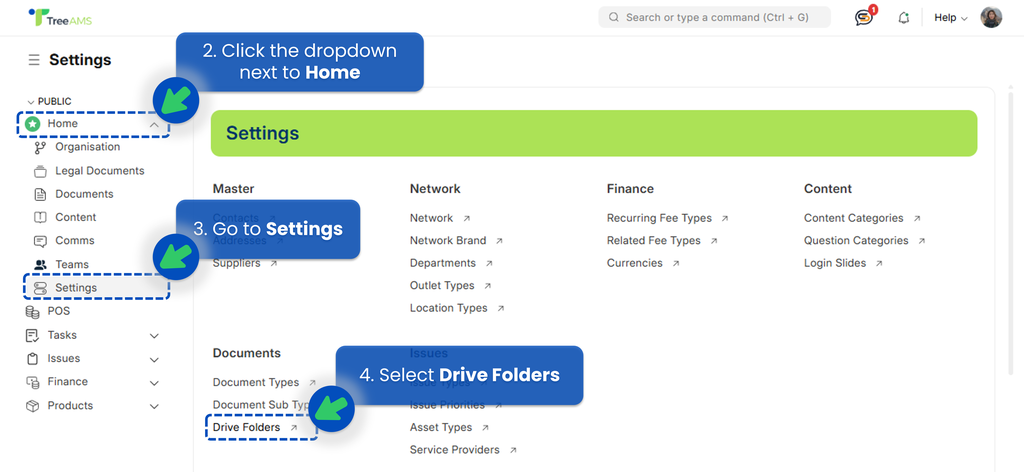
- Go to Desk. Learn how you can switch to Desk here!
- Click the dropdown next to Home menu.
- Go to Settings.
- Find Drive Folders under the Documents Section.
- Click + TAMS Drive Folder to create a folder that will be used to store files for this task (e.g., Onboarding Documents, Training Certificate, Franchise Agreement).
- After clicking + TAMS Drive Folder, you will see a form like this:

- Folder Name 👉 Enter the name of your new folder. This is the only required field.
- Is Group (optional) 👉 Enable this if the folder should contain subfolders. Leave it off for a regular folder.
- Old Parent (optional) 👉 Select the previous parent folder if you're reorganizing. Otherwise, leave it empty.
- Parent TAMS Drive Folder (optional) 👉 Choose a parent folder to place this folder inside another. Leave empty to create a top-level folder.
- Once saved, the folder will be available to select when assigning a File Upload Task.